Debugging with the GUI
The ASTRA GUI records what the system does as a trace of events, and can show the system as it was at any of them. This page shows how to follow what happened. Start the GUI with mvn compile astra:gui.
The trace
The Trace tab in the panel below the main area lists every agent’s events as they happen: agents created and terminated, events handled or unhandled, intentions adopted, completed or failed, beliefs added or dropped, messages, and (with astra-cartago) what agents perceive and request of artifacts. Filter it by agent or by event type. Failures and unhandled events are red, messages blue, belief changes green, and agents being created, terminated or changing state amber. Each agent’s own tab has a Trace of its events alone.
Viewing history
Click an event in a trace to see the system as it was just after it. The GUI switches to the history mode: the timeline bar shows the event’s number, and the agents’ tabs, the Explorer and the environment show the state at that point.
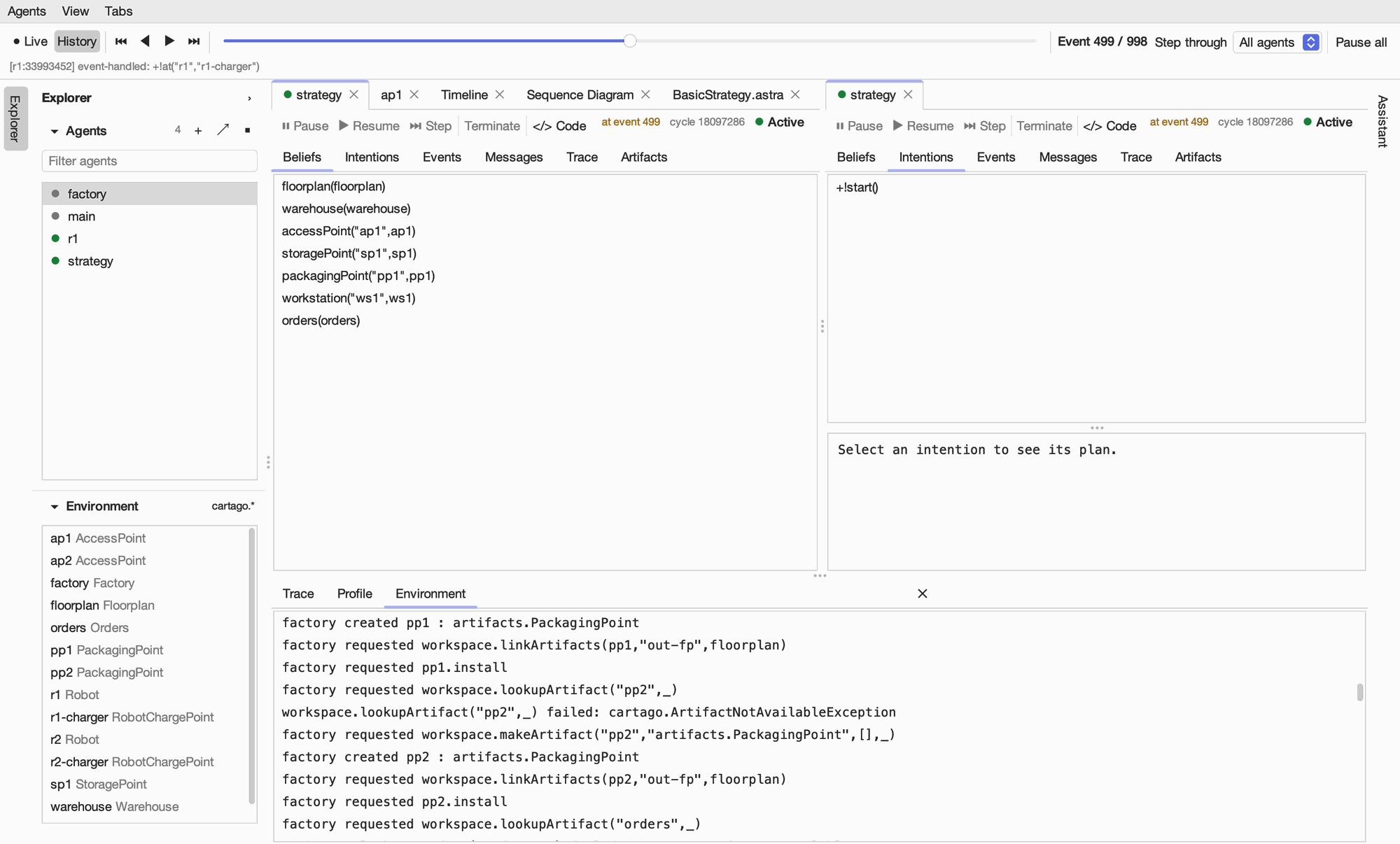
In the history mode:
◀ and ▶ move one event back or forward, ⏮ and ⏭ to the start or the latest event, and the slider jumps anywhere.
Step through limits the stepping to one agent’s events, to follow a single agent.
Live returns to the running system.
The history is a view of what was recorded: moving backwards does not undo actions or rerun plans, and the system keeps running while you look at the past. Pause all stops every agent (it then becomes Resume all); an agent’s own Pause and Step stop or step it alone.
Following a goal through the system
Open the agent that receives the goal and look at its trace.
Find the event that started the intention, and click it to see the system just after it.
Look at the agent’s beliefs and intentions at that point. Each intention shows the event that started it.
Step forward to see which events, belief changes and messages follow. Use Step through to move between one agent’s events, or all agents’ to follow a conversation; the sequence diagram shows the conversation as a whole.
Select Live to return to the running system.
For example, when a belief you expect is missing, click the event that should have added it and look at the beliefs just afterwards, then follow the next changes. This tells a belief that was never added from one that was removed later. The agent’s Events tab shows events that no rule handled, which often explain why nothing happened.
CArtAgO environments
With astra-cartago, the Explorer’s Environment section lists the workspace’s artifacts, and each opens as a tab showing its properties, observers and operations (see Inspecting agents). An agent’s Artifacts tab shows the properties the agent perceives. They describe different things: an artifact can exist without an agent focusing on it, and an agent only perceives the artifacts it focuses on.
The Environment tab beside the Trace lists the workspace’s events: operations requested and failed, signals, artifacts created and disposed, and changes of focus.
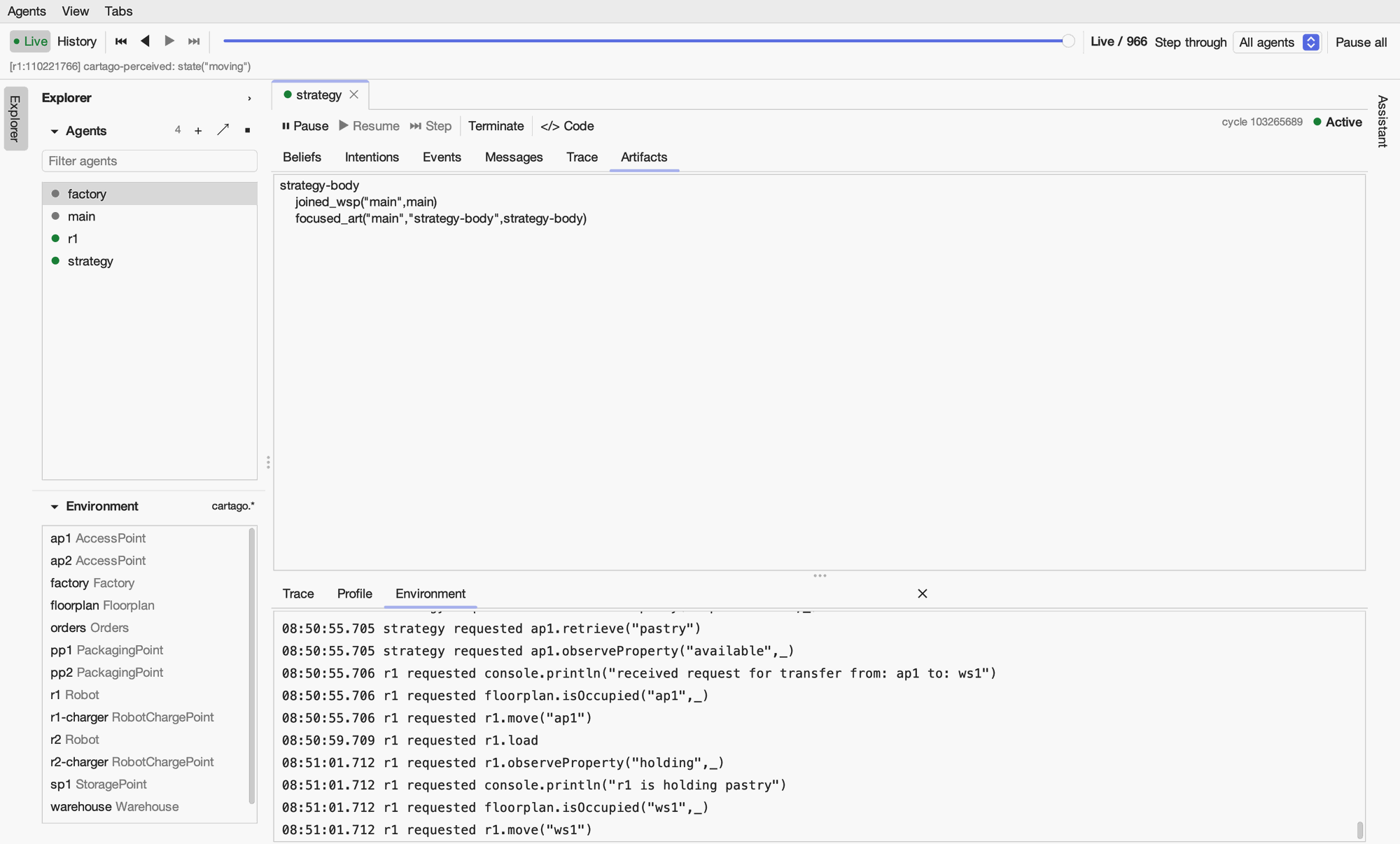
In the history mode, all of these show the environment as it was at the selected event; operations are only shown live.
ASTRA 2.7.4 corrected property-change notifications: a removed value raises a removal event before the replacement raises an addition event. Programs that react to both must provide separate -$cartago.property and +$cartago.property rules.
History limits and trace files
The GUI keeps the most recent 50,000 events by default. Configure this with -Dastra.gui.history=<n>. Events dropped from the history can no longer be viewed.
To also record the trace to a file:
mvn compile astra:gui -Dastra.trace=target/astra-trace.jsonl
A JSON trace is a separate record of the events; the GUI does not load it. See Tracing agent activity for its format. The GUI’s history is also separate from an agent’s restart memory and from LLM reasoning memory.