Using the ASTRA GUI
The ASTRA GUI shows a running ASTRA system: its agents, their beliefs, intentions, events and messages, any CArtAgO environment, and a recorded history you can step back through. It also profiles the system, draws its activity and interactions over time, shows the agents’ code, and can include an AI assistant that answers questions about what the system is doing.
This chapter describes the GUI in ASTRA 2.8.4. The screenshots show the manufacturing-mayhem factory simulation: a strategy agent assigns orders and a robot agent moves goods between CArtAgO artifacts.
Starting the GUI
Compile the project and start it with the GUI:
mvn compile astra:gui
The GUI opens first and then starts the main agent, so every agent the program creates appears in it. Closing the window ends the program. Use -Dastra.main=example.Main to start a different agent class (see Maven options).
Option |
Effect |
|---|---|
|
The theme. By default the GUI follows the operating system’s dark mode; View > Theme changes it and remembers the choice. |
|
How many trace events the history keeps (default 50,000). |
|
Also measure the CPU time of each agent cycle, for the Profile. |
|
Leave out the AI assistant. |
|
The settings file for the AI assistant (default |
The window
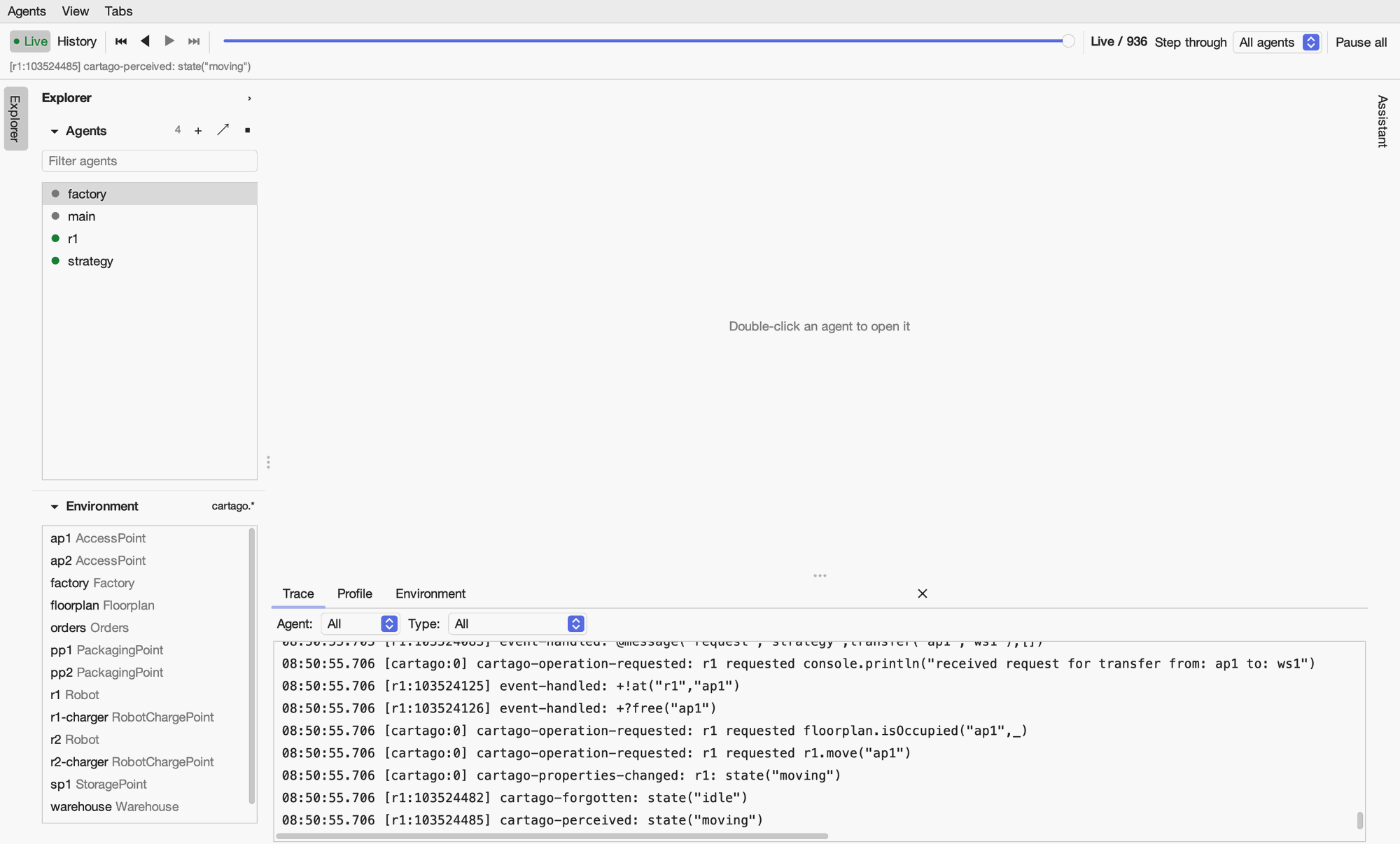
The window is laid out like an IDE:
The timeline bar (top) switches between the Live system and its History, steps through the recorded events, and pauses or resumes every agent. See Debugging with the GUI.
The Explorer (left) lists the agents, with a dot showing each agent’s state: green for active, grey for idle, red for terminated. The buttons beside the heading create (+), open (↗) and terminate (■) agents, and right-clicking an agent offers the same. With
astra-cartago, an Environment section lists the workspace’s artifacts. Each section can be folded away, and the whole Explorer collapses to a tab on the window’s edge.The main area shows agents, artifacts, code and diagrams as tabs. Double-click an agent or artifact to open it. Tabs can be split into side-by-side panes; see Inspecting agents.
The panel (bottom) holds the Trace of every agent’s activity, the Profile and, with
astra-cartago, the Environment events. Close it with × or View > Panel.The Assistant (right) answers questions about the running system. It collapses to a tab on the window’s edge.
Themes
The GUI has light and dark themes. By default it follows the operating system; View > Theme chooses one.
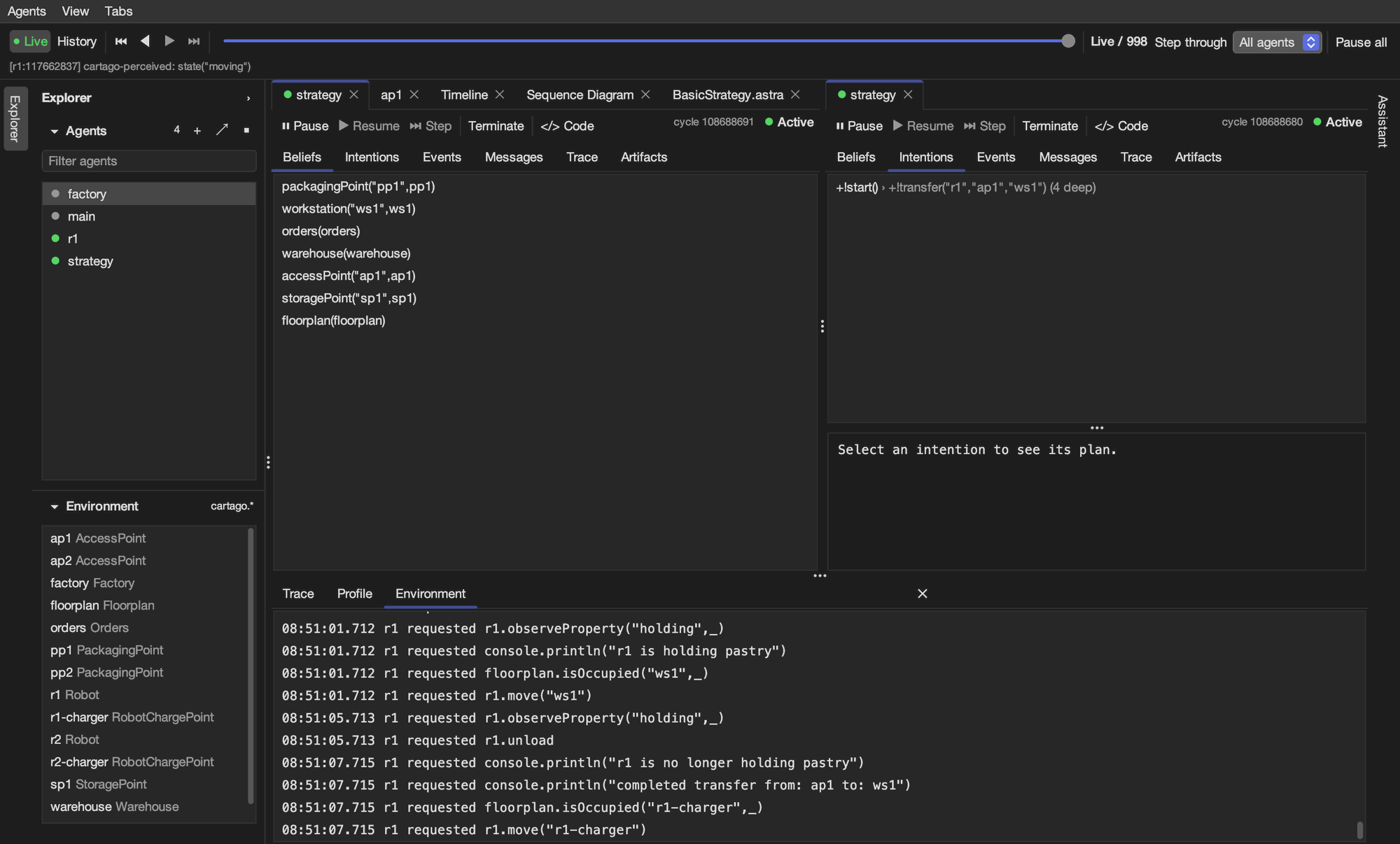
Keyboard shortcuts
On macOS use ⌘; on Windows and Linux use Ctrl.
Shortcut |
Action |
|---|---|
⌘N |
New agent |
⌘O |
Open the selected agent |
⌘B |
Show or hide the Explorer |
⌘J |
Show or hide the panel (Trace, Profile, Environment) |
⌘⇧A |
Show or hide the Assistant |
⌘⇧L |
Open the Timeline |
⌘⇧D |
Open the Sequence Diagram |
⌘\ |
Split the current tab to the right |
⌘⇧\ |
Split the current tab downwards |
⌘W |
Close the current tab |
In this chapter
Inspecting agents: an agent’s beliefs, intentions, events, messages and artifacts, its code, and split panes.
Debugging with the GUI: the trace, stepping through history, and CArtAgO environments.
Profiling and visualising: the Profile, the Timeline and the sequence diagram.
The AI assistant: setting it up and asking it about the system.