Profiling and visualising
The GUI measures how much work each agent does, and draws the system’s activity and interactions. These views follow AgentSpotter, the profiler built for the Agent Factory framework at University College Dublin by Dinh Doan Van Bien: its flat profile and its space-time diagram.
While the GUI is open, each agent cycle records how long it took. Run with -Dastra.trace.cpu=true to also record the CPU time each cycle used, which costs a little more.
The Profile
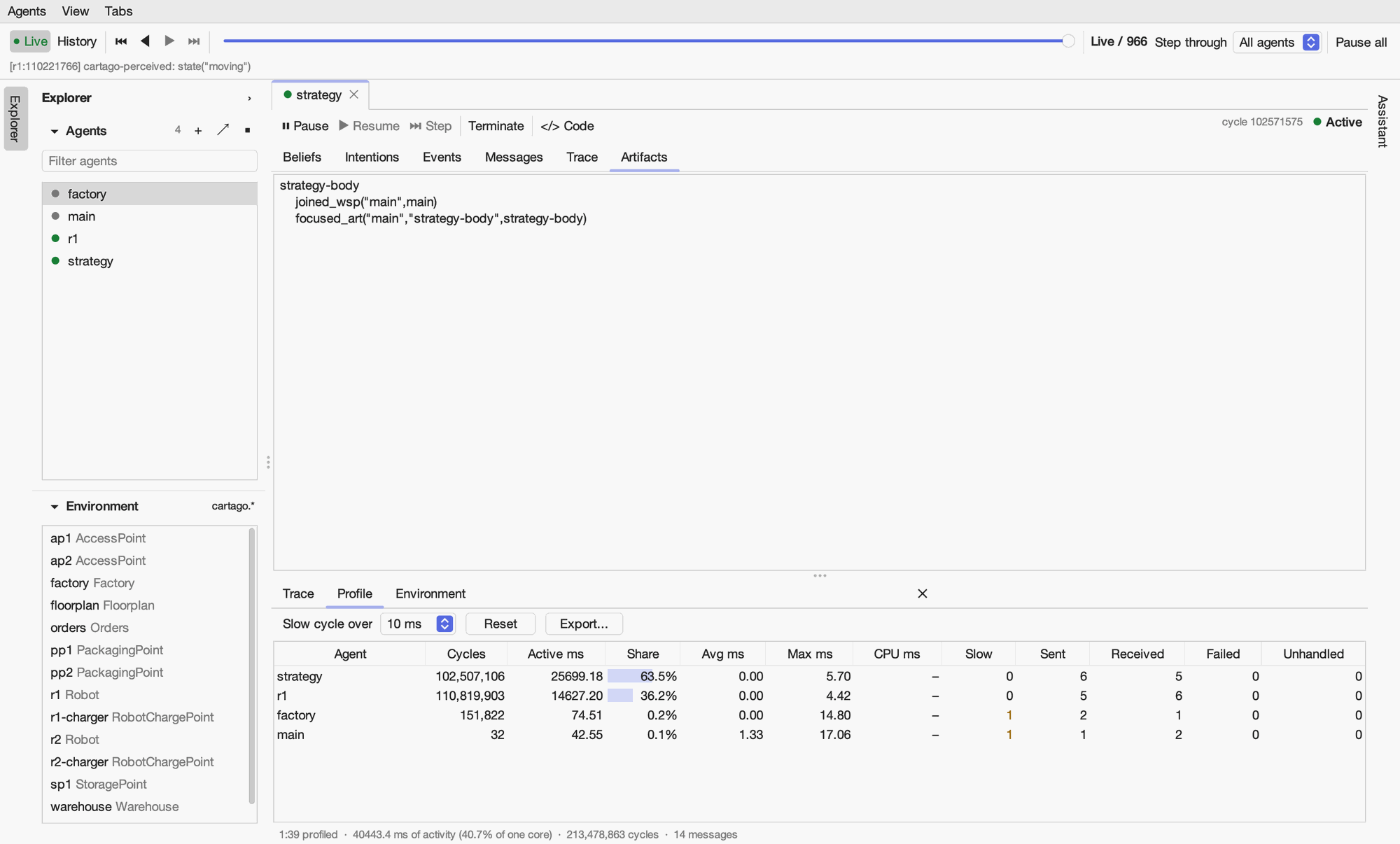
The Profile tab in the panel below the main area is a flat profile: a row for each agent, busiest first.
Column |
Meaning |
|---|---|
Cycles |
Cycles the agent has run. |
Active ms |
Time spent in its cycles. |
Share |
Its share of all the agents’ activity, with a bar so that the busiest agents stand out. |
Avg ms, Max ms |
Its average and longest cycle. |
CPU ms |
CPU time used (with |
Slow |
Cycles longer than the threshold chosen above the table (1 ms to 1 s). |
Sent, Received |
Messages. |
Failed, Unhandled |
Intentions that failed, and events that no rule handled. |
Click a column to sort by it, and double-click a row to open the agent. Reset starts the profile again, for example before the part of a run you want to measure, and Export… saves it as CSV. The line below the table gives the time profiled and the total activity as a share of one CPU core, so it can exceed 100% when several agents run at once.
The profile covers the whole run since the GUI started or the profile was reset; it does not follow the history.
Agents with sensors, such as those that use CArtAgO, stay active to monitor their environment, so they run many short cycles even when they are only waiting. In the example, strategy and r1 have run over 100 million cycles each while their intentions wait on the factory’s slow operations. That is the design rather than a fault; an agent without sensors is suspended when it has no events, intentions or active teleo-reactive functions.
The Timeline
View > Timeline (⌘⇧L) opens the system over time, after AgentSpotter’s space-time diagram.
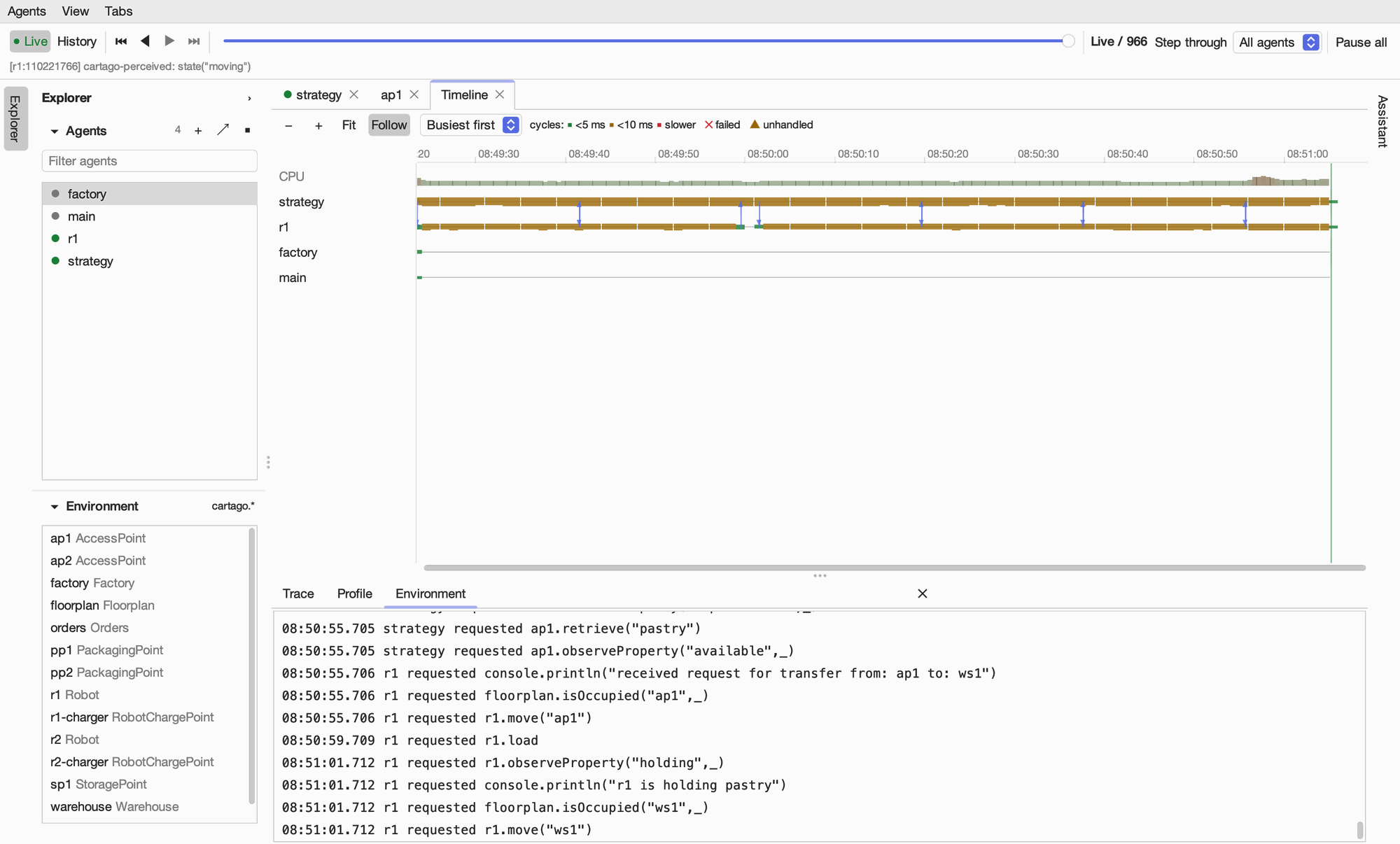
Each agent has a lifeline from its creation to its termination.
Its cycles are boxes coloured by how long they took: green under 5 ms, amber under 10 ms and red for slower. When zoomed out, each second shows how busy the agent was.
Messages are arrows between lifelines. Messages to or from agents on other platforms go to an Other platforms lifeline at the bottom.
✕ marks a failed intention and ▲ an unhandled event.
The CPU strip along the top shows the process’s CPU load, from green to red.
Hover over anything for details. Click a moment to see the system as it was then (the history mode); in the history mode a line marks the moment being viewed. Zoom with + and − (or ⌘ or Ctrl and the mouse wheel), drag to pan, Fit to see the whole run, and Follow to keep the latest moment in view. Rows can be ordered busiest first, oldest first or by name, and double-clicking a name opens the agent.
The sequence diagram
View > Sequence Diagram (⌘⇧D) draws the messages between agents as an Agent UML sequence diagram: a lifeline for each agent that took part, and each message as an arrow labelled with its performative and content, in the order the messages were sent.
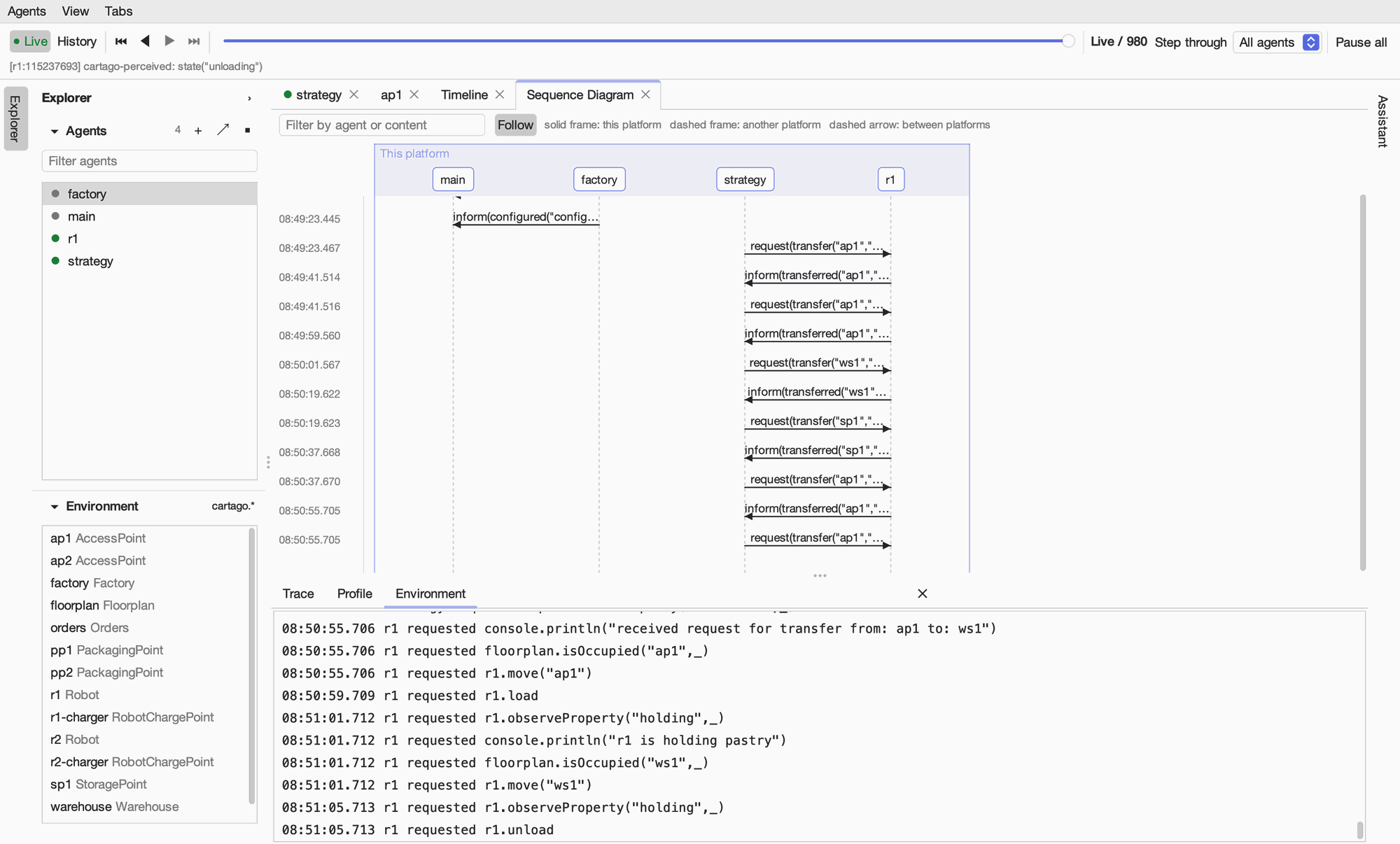
Agents are grouped by platform. This platform’s agents are in one frame; agents on other platforms are in a dashed frame for each platform, named from their addresses (such as the host and port of a MAMS agent’s URL), and messages between platforms are dashed.
Hover over a message for its conversation, protocol and reply fields. Click a message to see the system when it was received; in the history mode, messages after that point are faded. The filter keeps the messages whose agents or content match.